
Workstation setup and posture in optical roles
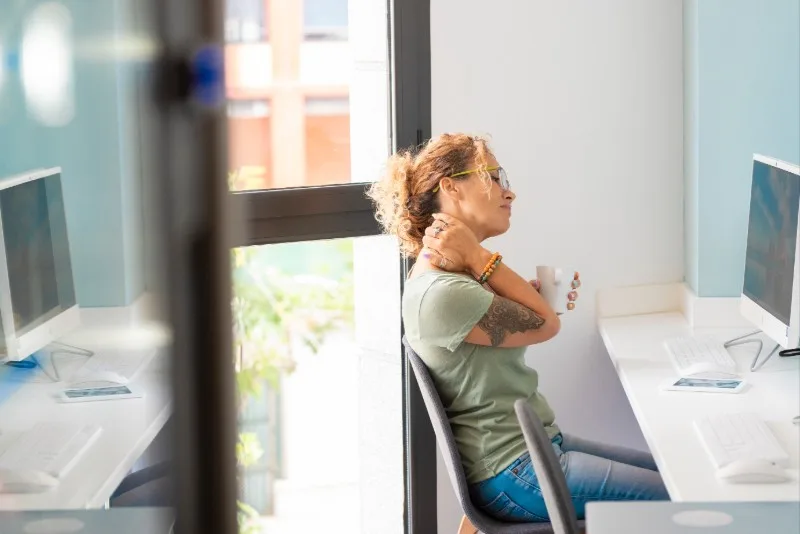
A well-arranged workstation reduces repeated leaning, twisting, reaching and awkward wrist positions. The aim is comfort, freedom to move and ready access to the tools you use most.
Workstation set up at home and in the office - good posture
Video: 1m 37s · Creator: Health and Safety Executive. YouTube Standard Licence.
Was this video a good fit for this page?
A practical setup check
- Screen: place it directly in front of you where possible, at a comfortable height and about an arm's length away.
- Chair: sit with your back supported and adjust the chair if the workstation allows it.
- Feet: keep feet supported by the floor or a footrest if needed.
- Keyboard and mouse: keep them close enough to use without stretching, with wrists as neutral as possible.
- Documents and tools: keep frequently used items within easy reach to avoid repeated twisting.
- Space: keep the area clear enough for comfortable work and safe movement.
Optical role examples
Reception staff may need the phone, booking screen, payment terminal, printer and forms arranged to match the sequence of tasks. Dispensing staff often need the screen, measuring tools, mirror, calculator and frame tray positioned so they do not twist repeatedly. Clinical and support staff need layouts that avoid leaning over low keyboards or awkwardly turning between patient, screen and equipment.
Good posture is not rigid posture. Set the workstation up well, then change position before stiffness builds.
Ask Dr. Aiden
Rate this page
Sign up now for a free account
Course tools & details